HANDS-ON TUTORIAL
Learn OverDraw by doing it
The practice page below behaves like OverDraw in Safari. Follow the lessons on the right: each one ticks off when you do it. Nothing leaves your browser.
We design calm,
useful software.
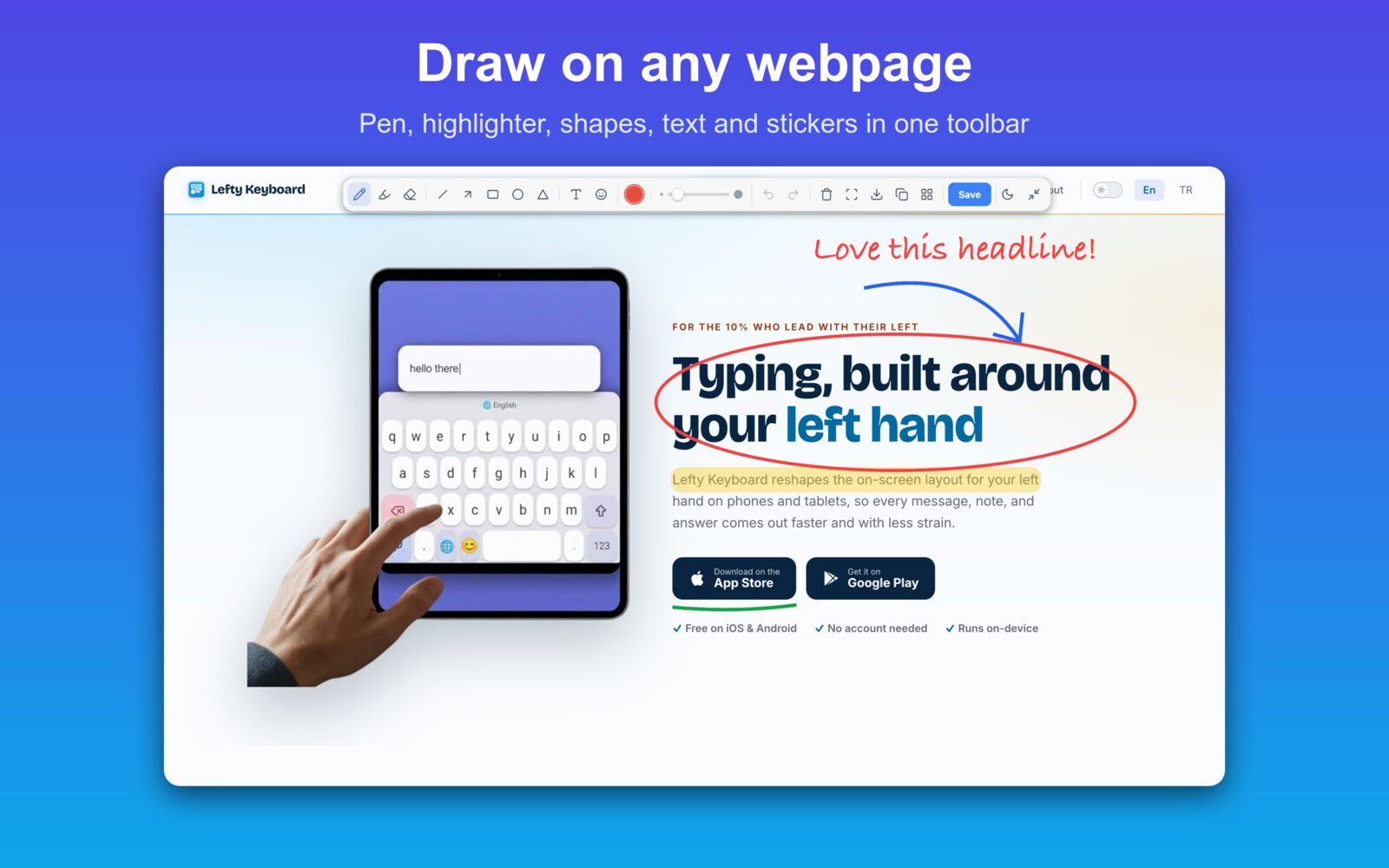
Mark up this page like a client review: circle the headline, highlight a sentence, point an arrow at the button.
Simple pricing
Good feedback is specific. Instead of writing a paragraph about spacing, draw a box around the gap and write “tighter”. That is what OverDraw is for.
The practice page needs a mouse or trackpad and a keyboard. Open this on your Mac.
Press ⌘D (or Ctrl D), or click the OverDraw icon in the browser bar of the practice page.
- 1Turn the overlay on
- 2Draw with the pen
- 3Switch tools with the keyboard
- 4Undo a mistake
- 5Scroll down and keep drawing
- 6Save your drawing
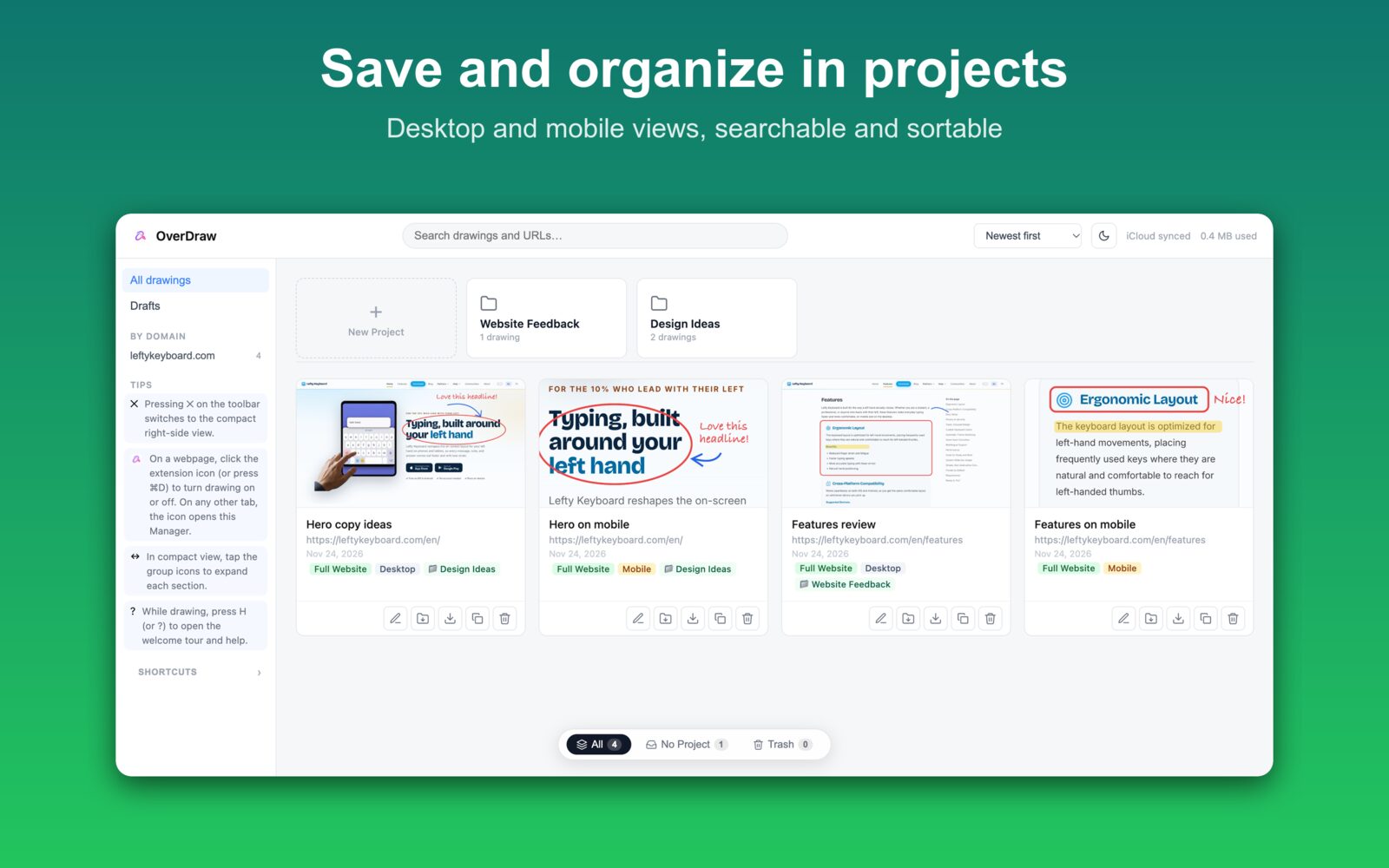
- 7Clear the page, then open it from the Manager
- 8Continue drawing on the loaded page
- 9Close the overlay with the shortcut
Nothing saved yet. Draw something and press ⌘S; it lands here.
Tool shortcuts
Active while the overlay is open and you aren't typing in a text field. The practice page supports the drawing tools above; the real extension adds triangle, text, stickers and viewport mode.
- PenP
- HighlighterM
- EraserE
- LineL
- ArrowA
- RectangleR
- CircleC
- TriangleT
- TextX
- StickersS
- Viewport modeV
Other shortcuts
- Smaller / larger brush− / +
- Collapse to compact toolbarEsc
- Undo / redo⌘Z / ⇧⌘Z
- Save drawing⌘S
- Export PNG⌘E
- Open the help tourH or ?
- Turn the overlay on or off⌘D
The real thing